How do I turn off User Account Control?
Description

What is the User Access Control or UAC?


The UAC is a security feature in Windows Vista, Windows 7, Windows 8 and Windows 10 which helps prevent unauthorized changes to your computer.

When the UAC is on you will get a prompt to authorize the changes. This prompt does not work for background processes therefore the changes are automatically denied by the UAC.

For Sage Pastel and Pervasive to register correctly and apply the database licenses you will need to ensure that the Windows User Account Control or UAC has been turned off as these are backgroud processes that get denied and can lead to error code 20, status 161, Pervasive error code 94 etc.

The reason the UAC needs to be turned off is that during registration the licenses for the Pervasive database are applied in the background.

Cause
Resolution

Watch the below video on turning off the user account control 

How to turn off the User Account Control in Windows Vista and Windows 7

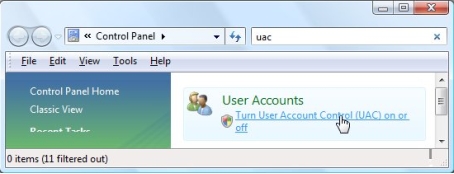
  1. Go to Start| Control Panel
  2. In the search type in UAC and press ‘Enter’ on your keyboard


  3. Click on the option ‘Turn user Account Control (UAC) on or off’
  4. The ‘Turn on User Account Control (UAC) to make your computer more secure’ screen will display

    uac2.png

  5. Ensure the option Use User Account Control (UAC) to help protect your computer is not ticked
  6. Go to Start| Control Panel
  7. In the search type in UAC and press ‘Enter’ on your keyboard


  8. Click on the option ‘Change User Account Control Settings’
  9. The ‘User Account Control Settings’ screen will display

  10. Ensure the slider is at the bottom on Never notify
     

How to turn off the User Account Control in Windows 8 and Windows 10

  1. Navigate to your Control Panel
  2. Search for UAC

    uac1.png

  3. Select the option Change User Account Control settings
  4. The ‘User Account Control Settings’ screen will display


  5. Set the slider to never notify

A restart is reqcuired once the UAC has been turned for changes to take effect 


Steps to duplicate
Related Solutions